Procedure Text ' HOW TO DO'
Procedure Text
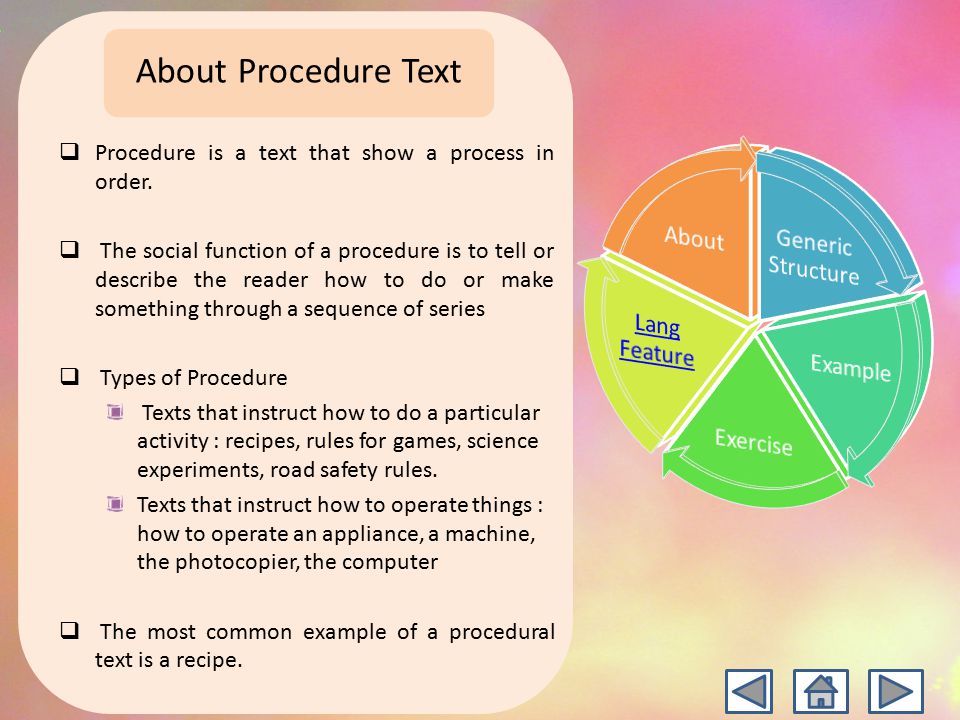
AA. Definition
1 . Text that explain how something works or how to use instruction/operation manuals e.g. how to use the video, the computer, the tape recorder, the photocopier, the fax.
2 . Text that instruct how to do a particular activity e.g. recipes, rules for games, science experiments, road safety rules.
3 . Text that deal with human behavior, e.g. how to live happily, how to succeed.
B. Generic Structure
1. Goal/Aim
This text contains about purpose of making or operating of something.
2. Materials/Equipment
Materials consist of ingredients that are used in making something. But not all parts of procedure text includes materials, sometimes a procedure text does not have materials section.
3. Steps/Methods
Contains the steps or sequences that must be done so that the objectives outlined in the aim/goal to be achieved. Steps or sequences must be a sequence from the first to the last.
C. Purpose
The purpose of procedure text is to tell the reader how to do or make something. The information is presented in a logical sequence of events which is broken up into small sequenced steps. These texts are usually written in the present tense. The most common example of a procedural text is a recipe.
D. Characteristics Procedure Text
ü Using imperative sentence patters (Command), for example, Cut, Do not mix, and so on.
ü Using active verbs, such as turn, put, do, mix, etc.
ü Using connectives (Conjunction) to sort of activities, such as then, while, etc.
ü Using adverbials (Adverbs) to express detail the time, place, manner accurate, for example, for five minutes, 2 hours, etc.
ü Using the simple present tense.
.-Example Of Procedure Text
- How To Upload a Video On Youtube
- 1. Open the YouTube app. It has a red-and-white icon with a rectangle and sideways triangle inside, labeled "YouTube." You should find it on one of your home screens or in your apps menu.
- YouTube should come preinstalled on all phones and tablets, but if you don't have it, you can download it from the App Store (iPhone/iPad) or Play Store (Android).
- Connect to a Wi-Fi network before uploading video to avoid data charges.
- If you aren't signed in automatically, you'll need to select your Google account or sign in with the email address and password associated with your YouTube account
 2Tap your profile photo. It's at the top-right corner of the screen. This opens the menu.
 3Tap Your channel. It's near the top of the menu.[1]
 4Tap the camera icon. It's on the right side of the bar that runs along the top of the screen.
- If it's your first time uploading a video from your phone or tablet, you may have to give the app permission to your photos, camera, and/or microphone before you can continue.
 5Select a video. A list of all videos in your phone or tablet's camera roll will appear. Tap the one you want to add.
- You can upload videos up to 15 minutes in length by default. If you want to upload longer videos (up to 12 hours), you must verify your account first.
 6Add enhancements to the video (optional). If you'd like to make some last-minute edits, you have a few options:
- If you want to shorten the video, drag the sliders on either edge of the video timeline at the bottom of the screen to the desired start and endpoints.
- Tap the magic wand icon to choose an artistic filter. It's in the upper-right corner on Android, and at the bottom of the screen on iPhone and iPad.
- Tap the music note if you'd like to add a soundtrack of royalty-free music (iPhone and iPad only).
 7.Tap Next to continue . If you are using a iPhone or Andoid, tap Next in the upper-right corner to go to the next step
 8.Enter a title. The title can be up to 100 characters long and should reflect the content of your video.[2]
 9.Enter a description. The description is optional but recommended. Info in the description will appear below your video while viewing. You can use this space to add some unique information about the video, the creator, or other projects. Add keywords to this area to make your video appear in relevant searches.
10.Select a visibility level from the "Privacy" menu. There are three options in the privacy menu you can select from. The privacy options are as follows:- Public: This makes your video public searchable and viewable to anyone on youTube.
- Unlisted: Your video will not publically listed, but anyone with the video link can still view the video.
- Private: This allows only you to view the video when you are signed in to your account
.
 11Tap Location to set your location (optional). If you'd like to categorize your video geographically, you can do so in this section under the "Privacy" header. Tap "Location" and then tap one of the nearby locations. You can also enter an address or name of a place in the search bar and select a location from the search results.
- The first time you add a location to a video, you will be required to allow YouTube to have access to your locations on your smartphone or tablet. Tap Allow while using app to continue.
 12Tap UPLOAD. It's in the upper-right corner. This uploads the video to YouTube. Once the upload is complete, it will appear in your Videos list.
- If you'd like to add tags to your video to make it easier for people to find, tap the three-dot menu on the video, select Edit, and then list tags in the "Tags" field separated by commas.




Comments
Post a Comment